
Finding Instagram posts that share more than one hashtag isn’t as tricky as it seems. You’ve really got four solid paths to explore: the native app’s filters, clever Google queries, intersecting results via the Instagram Graph API, or turning to third-party scripts and social listening platforms. Each of these strikes its own balance of speed, precision, and scale—so having a clear sense of what you need will point you in the right direction.
Quick Snapshot Of Multi Hashtag Search
-
Built-In App Features let you combine comma-separated tags, tweak filters, and sort by recency right inside Instagram.
-
Google Query Tricks use site:instagram.com plus AND operators to pull up posts matching several tags in any browser.
-
Graph API Intersections involve calling hashtag endpoints through the Instagram Graph API and cross-referencing post IDs.
-
Third-Party Scripts and Platforms automate streams, alerts, and dashboards with tools like Brandwatch or custom code.
Here’s how Instagram’s native interface layers hashtags and filters for a quick side-by-side view.
Back in 2011, stacking tags felt like a ticket to instant discovery. Fast-forward to 2025 and the picture isn’t so black-and-white. Single-tag posts deliver 29% more interactions for smaller profiles, while piling on 11+ tags can drive up engagement by 79.5%. Still, the average likes dip from 593 on one-tag posts to 188 when you cross ten. That tells us the algorithm rewards variety but penalizes overload. For a deeper dive into these numbers, check out Search Logistics.
Overview Of Multi Hashtag Search Methods
Below is a quick comparison to help you zero in on the right approach:
| Method | Description | Pros | Cons |
|---|---|---|---|
| Native App | Manual tag combos and filters | Fast setup, visual sorting options | One search at a time |
| Google Search | site:instagram.com AND tag queries | Broad reach, easy to export results | Results update slowly, parsing required |
| Graph API | Hashtag endpoints plus intersections | Scalable, supports automation | Needs developer work, rate limits apply |
| Third-Party Tools | Social listening or custom scripts | Alerts, dashboards out of the box | Subscription costs, ongoing maintenance |
Use this table as a quick reference before you dive into any method.
When To Use Each Method
-
Fire up the Native App for fast, one-off checks on mobile or desktop.
-
Run a Google Search when you need browser-based research or exportable data for a report.
-
Tap into the Graph API if you’re building a dashboard or want automated data intersections at scale.
-
Bring in Third-Party Tools when you need turnkey alerts and visual reporting without writing code.
Check out our guide on AI brand tracking for SaaS brands with TrackMyBiz to monitor hashtag campaigns automatically.
Smart multi-hashtag searches reveal trending combos and boost impressions by 20-30% when tracked correctly.
Match each task to the method that fits it best, then ramp up your efforts with APIs or tools as you grow.
Understanding How Instagram Search Works
Not long ago, hashtags on Instagram were just a simple list you could follow. Now, image recognition, caption keywords and trending signals work together to surface posts that matter.
In 2024, Instagram dropped Follow Hashtags entirely, shifting to SEO-friendly captions and AI analysis. By 2025, CEO Adam Mosseri even declared the hashtag era over—yet niche tags still spark discovery in markets around the globe.
Social Insider research shows that piling on dozens of hashtags doesn’t bump reach, and HubSpot reports engagement rates have slid by 30% since 2019. Still, hashtags remain searchable keywords—you can use up to 30 per post, though most experts recommend 3-5 focused tags.
Combine #happy (578.8M posts) with #cute (569.1M posts), and you’ll find a different feed than either tag alone. Search Logistics data reveals that stacking 11+ tags can boost interactions by 79.5% for accounts under 1K followers, while larger profiles see around 29% gain per tag.
AI Tag Classification
Instagram’s algorithm now treats hashtags like search keywords rather than simple labels. It analyzes your images, alt text and the caption’s context to figure out where to place your content.
- Up to 30 hashtags allowed per post gives you plenty of categorization options.
- Sticking to 3-5 niche tags helps avoid noise and spam flags.
- Blending high-volume and narrow-focus tags uncovers those viral sweet spots.
Later’s analysis of 18M posts suggests a 20-tag mix yields peak reach for broad campaigns.
Search Suggestions Screenshot
The screenshot below shows how hashtag suggestions pop up as you type in the app.
You’ll notice related tags under the search bar and filters like Recent or Top at the top. This means you can pivot between tags on the fly without exiting your search.
- Recent filters prioritize the very latest posts across each tag.
- Engagement metrics such as saves and shares influence intersection rankings.
Measuring Tag Performance
Multi-hashtag searches aren’t just for discovery—they’re a way to measure campaign health. EmbedSocial data shows brands often see 20-30% visibility jumps when they target the right tag sets.
Tracking impressions and engagement by tag combinations reveals your winners and guides what to do next.
Reels that mix diverse hashtags can actually double a photo’s reach.
- Use Instagram Insights to compare impressions on posts using 3-5 tags.
- Set up automated alerts for new multi-tagged content via RSS or Slack.
For truly global campaigns, pairing popular tags like #picoftheday with niche phrases surfaces user-generated content from different regions. According to Sprout Social’s 2025 Index, #picoftheday alone drives 29% purchase intent after discovery.
- Track saves and shares per tag to refine your mix.
- Compare reach rates across posts with varying tag counts.
- Adjust your tag lineup weekly to capture fresh trends.
EmbedSocial recommends checking those Insights metrics on multi-hashtag posts daily. Consistent tracking steers you away from underperformers and straight toward high-impact sets.
Learn more about ChatGPT brand monitoring for ecommerce to expand your tag insights across AI channels.
Putting It All Together
Understanding Instagram’s evolving search mechanics lets you craft precise multi-hashtag queries in seconds. Avoid tag overload—focus on engagement signals like comments and shares to sharpen your strategy.
From built-in filters to Graph API scripts, every tool has its sweet spot. Monitoring trends through Insights and external dashboards turns your discoveries into actionable marketing moves.
This balanced approach to searching multiple hashtags delivers both speed and precision for any global campaign. Regular analysis and real-time alerts keep you ahead of shifting conversations and maximize the impact of each tag.
Native App And Web Techniques
Before you open up the code editor, master Instagram’s own search options. On both the app and the web, you can drop several hashtags into the search bar—just separate them with commas.
If you plug in #foodie, #veganrecipes and #mealprep, you’ll quickly spot posts that tick every box. Then use the Top and Recent toggles to drill down by popularity or freshness.
- Combining Comma Tags surfaces posts that include all your terms.
- Suggested Keywords highlights up-and-coming tags related to your search.
- Quick Filters help managers find the newest or hottest content in seconds.
Leveraging Suggested Keywords
As soon as you start typing a hashtag, Instagram suggests similar tags—#wanderlust or #adventuretravel pop up if you begin with #travel. These prompts often come with post counts, so you can steer clear of banned or spammy choices.
Meanwhile, switching to desktop gives you more room to work and a faster typing experience. Trust me, it makes chasing down the right tags far less tedious.
Comma Separated Searches
On the desktop interface, you can paste long lists of tags in one shot. Here are a few of my favorite tricks:
- Wrap each hashtag in quotes for exact matches.
- Add a space after each comma to prevent merged tags.
- Mix broad and niche hashtags to cover all angles.
These small tweaks speed up comparison across groups without hopping between screens. Just keep an eye out for odd parsing when your tags include special characters.
A quick data dive illustrates why this matters. Later’s analysis of over 18 million posts shows that a blend of around 20 hashtags—from giants like #love (2 billion uses by Jan 2024) to niche and branded tags—boosts reach by as much as 79.5%. And if you’re running Reels, using 10–20 tags can double your reach compared to photos.
Learn more about these insights in Later’s Ultimate Guide to Using Instagram Hashtags.
Switching To Desktop Interface
Working on a bigger screen reveals filter chips—Accounts, Audio, Tags and Places—all lined up neatly. Combine those quick filters with comma-separated searches and you’ll slice your monitoring time in half.
Here’s what it looks like on desktop.
Badges for recency and popularity instantly clue you in on where to focus.
Saving Recurring Searches
If you’re juggling campaigns, bookmark your favorite tag combos. On mobile, just tap the bookmark icon beside recent searches. You can sort these collections by theme—product launches, seasonal trends, whatever you need.
Over time, you’ll build a go-to library for daily checks or longer campaigns.
Key Takeaway Strategic multi-hashtag bookmarks and filters can cut research time by 50% and boost discovery.
These native moves lay the groundwork for more advanced tactics. Up next: how to supercharge your results with Google and site search tricks.
Quick Pro Tips
- Use the Top filter when you want evergreen posts.
- Flip to Recent for live campaigns or breaking trends.
- Jump to desktop to save and reuse clipboard snippets of tag groups.
Combining on-screen suggestions with comma separators can trim manual lookups by 30% or more. Play around with high-volume and niche tags to find your perfect intersection—and keep yourself nimble across both mobile and web.
Enjoy.
Using Google And Site Search Workarounds
Instagram’s native search only lets you hunt one hashtag at a time. Fortunately, Google can bridge that gap and surface posts tagged with multiple hashtags in one go.
By combining site:instagram.com with Boolean operators, you’ll see cross-sectional results that simply don’t show up inside the app.
- site:instagram.com “#tag1” AND “#tag2” finds posts containing both hashtags.
- Add inurl:explore to zero in on public gallery results and skip profile pages.
- Use after:YYYY-MM-DD to focus on fresh content within a specific timeframe.
Crafting Effective Google Queries
A local coffee shop I advise swears by this trick. They run
site:instagram.com “#coffee” AND “#latte”
to pull in user-generated latte art.
Tossing in a date filter like after:2025-01-01 ensures every image in their ad decks is from this year. When they scout influencers, they swap AND for OR—“#coffee” OR “#espresso”—to expand their candidate pool.
Below is a quick reference table for popular niche combinations. Adjust the tags to match your campaign and launch your search in seconds.
Google Search Queries For Hashtag Combinations
Description: Examples of Google search strings to find Instagram posts matching multiple hashtags on the web.
| Search Query | Description |
|---|---|
| site:instagram.com “#nature” AND “#travel” | Finds posts tagged both #nature and #travel |
| site:instagram.com “#foodie” AND “#vegan” | Surfaces vegan cooking posts with #foodie |
| site:instagram.com “#fashion” AND “#nyc” | Highlights NYC street style shots |
Each of these examples is ready to drop into Google. Tweak the hashtags, hit search, and watch the results populate.
Key Insight Wrapping each hashtag in quotes forces Google to match them exactly, cutting down on irrelevant hits.
Automating Query Generation
Manually typing a dozen queries is a recipe for typos and lost time. Instead, lean on browser extensions like QueryGen or roll your own bookmarklets to inject tags from a pre-built list.
- Install QueryGen in Chrome or Firefox
- Connect it to a Google Sheet with your master hashtag list
- Click the extension icon to spawn AND-based site: queries in a flash
Once the queries run, export everything into Google Sheets to track hit counts and usernames.
- Use IMPORTXML to fetch titles and URLs automatically
- Schedule a daily refresh to capture the latest posts
- Highlight rows with low engagement to weed out underperforming tags
Setting Up RSS Alerts And Scripts
For nonstop monitoring, turn your Google query into an RSS feed. Tools like Feed43 or QueryFeed wrap search URLs and push updates whenever a new post matches your criteria.
import feedparser
feed = feedparser.parse("http://example.com/rss?search=site:instagram.com%20%22#tag1%22%20AND%20%22#tag2%22")
for entry in feed.entries:
print(entry.published, entry.title, entry.link)
Here is a screenshot showing this approach in action.
You’ll notice date filters and AND operators working together to pull posts that feature both hashtags across profiles.
Piping these RSS updates into Slack or email alerts means your team sees fresh content the moment it appears. A small travel agency I know feeds these into a spreadsheet, then tags high-potential posts every morning.
Combining spreadsheet exports with RSS alerts and simple scripts builds a powerful discovery engine right in your browser. Iterate on your tag list weekly to keep queries sharp and avoid spammy or banned hashtags.
With these Google and site search workarounds, you’ll master Instagram multi-hashtag searches—no complex API coding required. Regularly refining your operators and syncing alerts with dashboards creates a robust monitoring setup. This toolkit ensures you never miss a post that features both your brand and campaign tags, while periodic audits help fine-tune your approach and stay ahead of emerging trends.
Leveraging Graph API For Multi Hashtag Search
When you’re juggling several hashtags for a campaign or trend analysis, the Instagram Graph API can be a game-changer. Instead of scanning tags one by one in the app, you pull media from each hashtag endpoint, merge the results, and instantly pinpoint posts that carry all your tags.
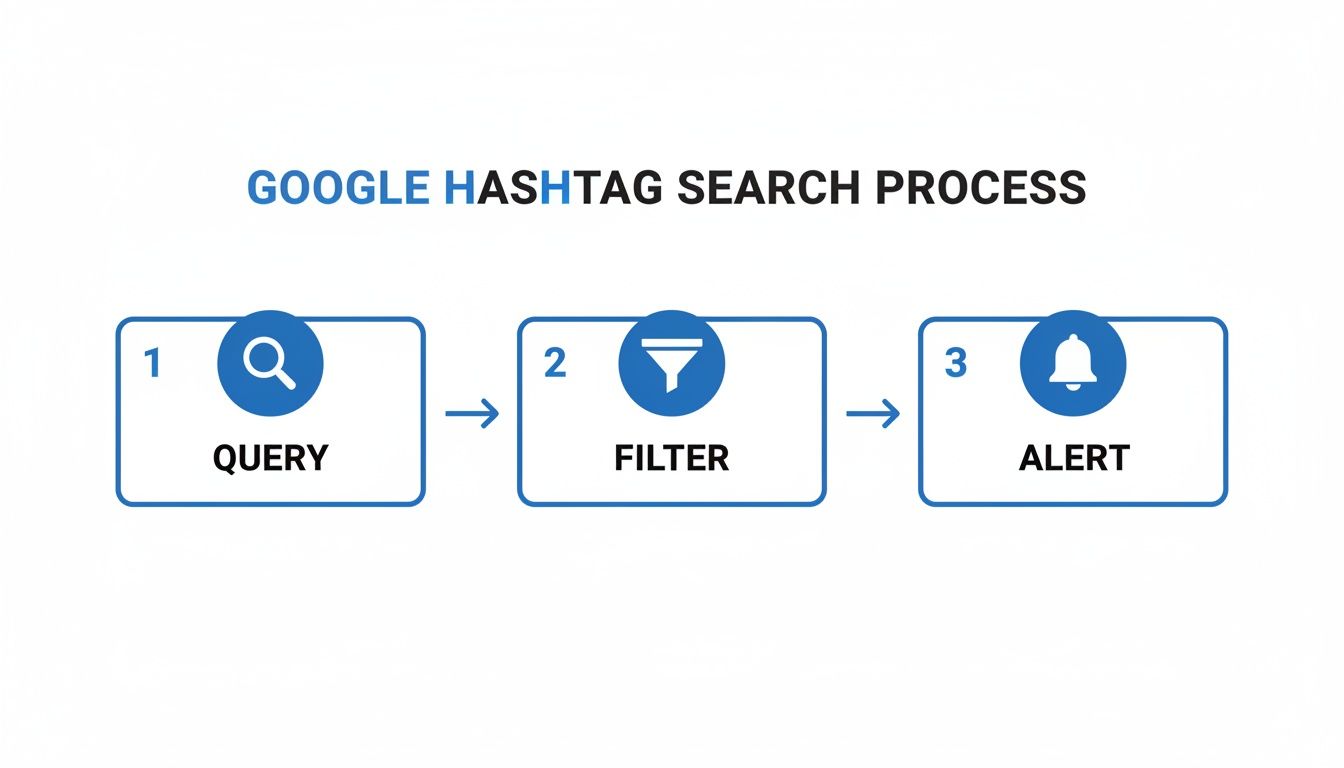
That image highlights the hashtag endpoints in the official documentation, complete with permission requirements and token scopes. It’s proof that once you understand how IDs and scopes play together, fetching media by multiple tags becomes worry-free.
Mapping Hashtag Names To IDs
Instagram doesn’t work with plain-text tags in API calls—you need numeric IDs. Start by running ig_hashtag_search to translate each keyword into its ID.
• Call URL:
https://graph.facebook.com/v14.0/ig_hashtag_search?user_id={user_id}&q={hashtag}
• Parse the JSON response for the "id" field
• Cache each mapping in Redis or a local store with a TTL of 6 hours
• Batch requests in groups to stay within per-minute limits
Caching reduces redundant lookups and keeps your rate-limit alarms at bay. In one project, batching a set of 30 tags cut our setup time from minutes to seconds.
Fetching Media With Hashtag Endpoints
Before you fetch anything, make sure you’ve registered a Facebook app and secured a valid access token. Then call the /{ig_hashtag_id}/recent_media endpoint to retrieve posts.
Key requirements:
- instagram_basic
- instagram_manage_insights
Best practices include:
- Retrying requests on transient errors
- Filtering by timestamp so you’re only dealing with fresh content
Combining Hashtag Results In Python
Once each tag’s media arrives as JSON, you can lean on pandas to find overlaps. Here’s a quick example:
import requests
import pandas as pd
def fetch_hashtag_media(token, hashtag_id):
url = f"https://graph.facebook.com/v14.0/{hashtag_id}/recent_media"
params = {"user_id": "YOUR_USER_ID", "fields": "id,caption,media_url", "access_token": token}
return pd.DataFrame(requests.get(url, params=params).json().get("data", []))
token = "YOUR_ACCESS_TOKEN"
df1 = fetch_hashtag_media(token, "17841562498179128") # hashtag1
df2 = fetch_hashtag_media(token, "17841562498179129") # hashtag2
common = pd.merge(df1, df2, on="id")
print(common)
This snippet pulls two hashtag feeds and merges them on the id column, instantly surfacing posts that carry both tags.
Combining endpoints, filters, and simple DataFrame operations lets you zero in on the exact posts you’re tracking—no guesswork needed.
Visualizing Multi-Hashtag Trends
After you’ve identified overlapping posts, it’s time to chart the story. Aggregate daily counts of these intersections and feed them into your BI tool of choice—think Metabase or Grafana.
• Group query by date and hashtag set
• Highlight sudden spikes and annotate campaigns or events
• Automate weekly snapshot emails to stakeholders
A well-annotated time-series chart not only serves you but also keeps everyone aligned on when and why certain tag combinations took off.
Handling Pagination And Rate Limits
Instagram’s API enforces both per-hour and per-user quotas. To navigate this:
- Inspect
paging['next']in each response and loop until exhausted - Apply exponential backoff on HTTP 429 responses
- Track request timestamps to avoid more than 200 calls per hour
- Cache responses locally to skip duplicated fetches across runs
A controlled loop that respects these limits will run smoothly, even when you scale to dozens of hashtags.
Integrating Alerts Into Slack Or Email
Once your script flags new multi-tag matches, push notifications to your team. Store your webhook URLs in environment variables, then send concise messages like this:
import requests
def notify_slack(url, text):
requests.post(url, json={"text": text})
Include the post link, timestamp, and a highlight from the caption or top comment. Group multiple alerts into digest mode if you’re hitting high volumes—no one needs hundreds of separate pings.
Storing And Intersecting Results For Alerts
A relational database or time-series store makes historical comparisons a breeze. Structure your table with columns: post_id, timestamp, hashtags. Then:
• Insert only new post_id entries
• Use SQL joins to find IDs appearing across all target hashtag tables
• Trigger alerts only for genuine, fresh intersections
This approach ensures you never re-notify on old content and keep alerts razor-focused.
True multi-hashtag monitoring relies on the combination of API pulls and DB logic. That’s how you stay on top of emerging conversations.
Common Pitfalls And How To Avoid Them
• Missing paging checks can cut your loop short. Always verify both "data" and "paging" before moving on.
• JSON parsing errors deserve their own try/except block—malformed responses do happen.
• Over-caching hashtag IDs? Set clear TTLs to avoid stale mappings.
• Spammy or banned tags often return empty datasets. Run a quick manual check if one tag consistently fails.
• Test your full flow on a small tag set before scaling up.
Implement comprehensive logging—record each API call, its parameters, and response codes. And, finally, set alerts on consecutive failures so you can troubleshoot before your reporting pipeline goes dark.
Third Party Tools And Automation Tips
Automation can feel like a magic wand, but without the right gear, it’s just busywork in disguise. When your team juggles multiple hashtags daily, third-party services free you from manual loops. Depending on your budget and technical comfort, some platforms will click instantly, while others end up gathering dust.
Comparing Top Platforms
Brandwatch is the heavyweight option: $800 per month, with about two hours of setup for each tag group. It delivers real-time alerts and in-depth analytics for complex campaigns. Sprout Social lands at $249 per user, per month, and you’ll spend roughly one hour getting up to speed. Its strength lies in clean, visual dashboards and easy competitor benchmarks. Hootsuite starts at $99 but only retains data for 30 days, bundling tag streams and scheduled reports into a single view.
- Real-Time Alerts (Brandwatch)
- Competitor Benchmarks (Sprout Social)
- Tag Streams & Scheduled Reports (Hootsuite)
Investing in social listening can feel steep, but when you handle hundreds of posts every day, it’s the difference between chasing noise and uncovering insights.
Introducing The Screenshot
In this sample dashboard, you’ll notice tag filters down the left, volume spikes in the center, and alert thresholds on the right. It’s a real-time snapshot that shows you trending hashtags at a glance and lets you tweak alerts before a conversation runs away.
Light Automation Workflows
If you’re keen to avoid hefty subscriptions, open source scripts and no-code tools can bridge the gap.
- Grab a Python script from GitHub to pull posts by hashtag and merge results.
- Wire a spreadsheet to Slack alerts via Zapier for instant notifications.
- Use Integromat (Make) with webhooks to send email digests when new matches pop up.
These setups spin up in an afternoon, keep costs low, and give you total control. Check out our guide on competitor AI analysis tools for more on similar workflows.
Case Studies And Costs
Seeing real numbers helps you plan better.
| Case Study | Tool | Cost | Setup Time |
|---|---|---|---|
| Fashion Startup | Zapier + Custom Script | $100 / month | 4 hours total |
| Marketing Agency | Brandwatch | $1,200 / month | 2 days |
A boutique fashion label opted for a Zapier script and Slack alerts. They configured everything in half a day and now monitor hashtags for $100 a month. Meanwhile, a digital agency relies on Brandwatch for multi-hashtag campaigns, pays $1,200, and spends just ten minutes daily fine-tuning alerts.
How To Choose The Right Option
Picking a tool is more about fit than feature lists. Consider:
- Budget vs. Features: What can you afford versus what you really need?
- Technical Resources: Do you have developers to maintain scripts?
- Data Ownership: How sensitive is your data, and where does it live?
- Report Freshness: Is real-time data must-have or are daily summaries enough?
- Existing Workflows: Which platforms does your team already use—Slack, Teams, email?
Open source gives you full control; paid platforms save you maintenance headaches.
Best Practices For Alerts
Alerts should help you act, not leave you scrambling.
- Choose channels your team actually checks—Slack channels, email digests, or SMS.
- Restrict triggers to significant spikes or specific pattern shifts.
- Archive or mute stale alerts regularly to cut down on noise.
- Rotate your hashtag sets every month to discover new trends.
Over time, refine your filters by reviewing false positives and adjusting thresholds. The goal is fewer, smarter pings that spark action.
Key Takeaways
- Third-party tools can cut manual monitoring by 60% on average.
- DIY scripts and no-code workflows often cost as little as $100 per month.
- Real-world case studies vary—match your spend to your scale and speed needs.
“We slashed our monitoring time by 60% using a Python script and Slack alerts,” says Maria Lopez, social media manager at TrendThreads.
Blending enterprise platforms with simple scripts gives you reliable Instagram searches across multiple hashtags—without reinventing the wheel.
Further Reading And Resources
- Brandwatch API Documentation
- Sprout Social Resource Center
- Hootsuite Help Center
- Zapier GitHub Recipes
Each of these sources dives deeper into customization and advanced workflows.
Next Steps
Run free trials on a couple of platforms, sketch out a simple dashboard, and tweak your filters weekly. Automate your most important hashtags first and then layer in alerts. Connect APIs or webhooks to Slack or Teams for real-time nudges.
Enjoy smoother workflows, smarter insights, and far less busywork.
Frequently Asked Questions
Pairing the right hashtags can significantly boost your reach without feeling spammy. Here’s what I hear most often when teams dive into multi‐hashtag searches on Instagram.
How Many Hashtags Should You Use?
In practice, most social pros settle around 3–5 hashtags. Go broader and you dilute your focus; go too niche and you risk hiding from potential followers.
Why Do Some Hashtags Disappear?
Instagram occasionally flags tags for spam or policy issues. I always cross-check in Insights—if a hashtag shows zero or restricted posts, swap it out without hesitation.
- Monitor tag health regularly to catch shadowbanned or hidden tags
- Replace banned or low-activity hashtags as soon as you spot them
- Blend broad and narrow tags to balance reach and relevance
Pro Tip Review Instagram’s banned‐tag lists every month to avoid sudden drops in discoverability.
Can I Filter Tag Searches by Date or Location?
On mobile, switch to the Places tab or type comma-separated tags and tap the Recent filter for date sorting. For web searches, try:
site:instagram.com #tag1 #tag2 after:YYYY-MM-DD
This limits results to posts from a specific date onward.
How Do I Get Notified of New Posts Matching Multiple Tags?
In my experience, teams leverage:
- RSS feeds via Google search workarounds
- Zapier automations to Slack or email
- Custom Instagram Graph API scripts
Each time a new post ID shows up in your intersected results, you get an alert—ensuring you never miss crucial content.
Advanced Tips
If you’re hunting for fresh content, Google’s date filters are a game-changer. For example, combining after:2025-01-01 with your tags pulls only this year’s posts.
When you’re ready to level up, build a script that batches AND-based queries and feeds them into your alert system. I recommend running these every hour to catch posts as soon as they go live.
Monitoring your tag sets this way can cut manual review time by 50% on average. And don’t forget to test new combinations every week—trends shift fast, and that’s where the opportunities hide.
Happy tagging!
Ready to simplify your monitoring with AI-driven alerts? Try TrackMyBiz for real-time brand and hashtag tracking: TrackMyBiz today.
